Hello! Even in the chilly weather, today's Biscoop weather forecast looks very clear!
Hello! Even in the chilly weather,
Today's Biscoop weather forecast looks very clear!
Thanks to all the Biscoopers who stream diligently, the operations team feels energized.

Building on your support,
We will now learn about the newly added chat board feature.
The chat board function is a feature that displays chat transparently in OBS or XSplit.
I will explain based on OBS!
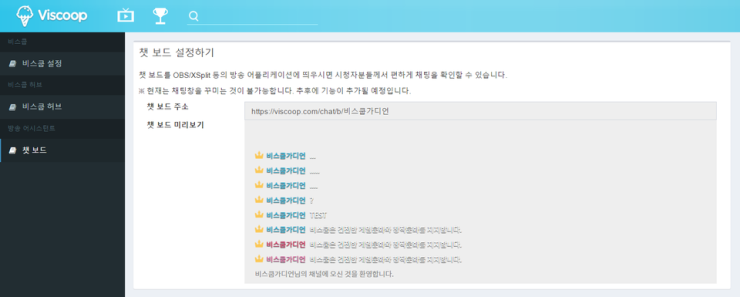
After logging into Biscoop, if you go to the 'Settings' menu in the upper right corner,
You can see that a new menu called 'Chat Board' has been added on the left side, as shown in the picture.
If you click and enter it, you can check the menu like this.
First, please copy the URL from the Chat Board address in advance.
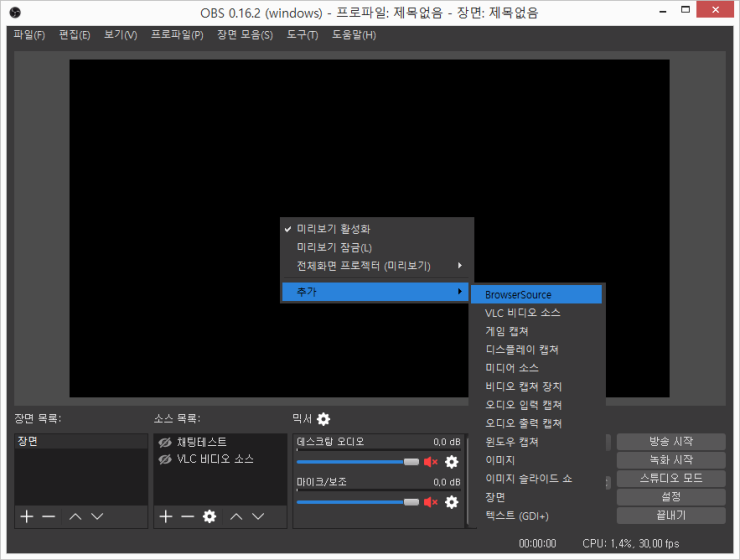
Open OBS, right-click in the center of the screen, and select 'Add',
You will see a menu called BrowserSource. If you cannot see it, please go to the OBS homepage
and install the latest version of OBS. BrowserSource is built-in.
After clicking and pressing 'OK', the following screen will appear.
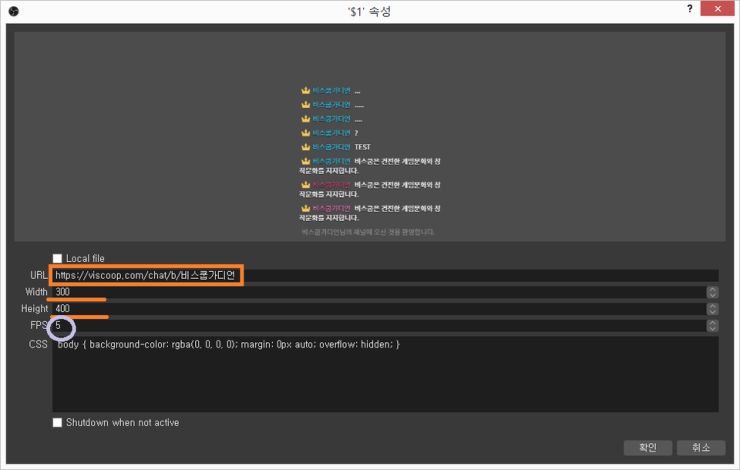
Please paste the address you copied earlier into the URL!
The width and height are settings for the width and height, and since the appropriate size is different for every broadcasting environment,
it would be best to check by adjusting it little by little.
You can leave FPS as it is. If your computer performance is not good, please change it to a value less than 10.
For CSS, you can leave it as it is or leave it blank.
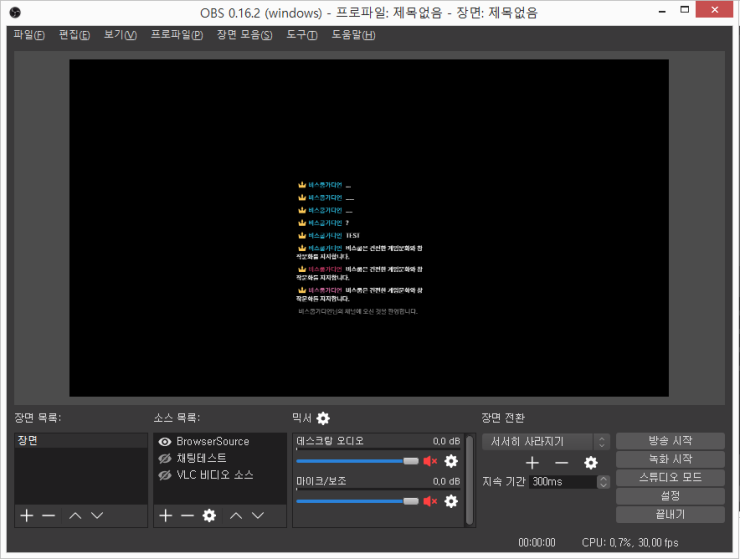
Ta-da! The Biscoop chat window has now appeared in OBS!

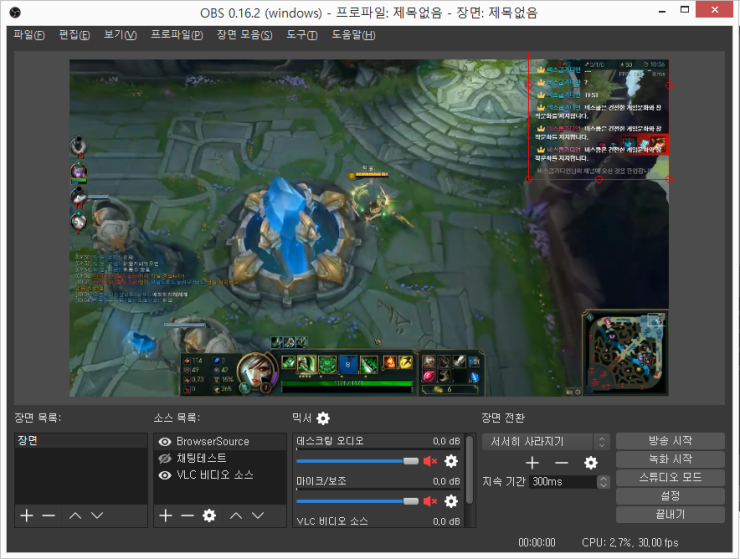
Now you can drag it to the desired location and place it appropriately on the screen.
We hope you can enjoy an even more wonderful broadcasting life through the new features!
Fighting everyone!